// 4 November 2026 · by James Willcocks
The photo step a news site did by hand for years, now done by a plugin
For years, every photo on the Chiswick Calendar went through a free website to be shrunk before anyone could upload it. No WordPress plugin could hit a file size the way that website did, so I worked out how it does it and built one that does the same thing on upload. How it works, with the code, and why a custom plugin was the right answer.
- · wordpress
- · custom development
- · plugins
- · images
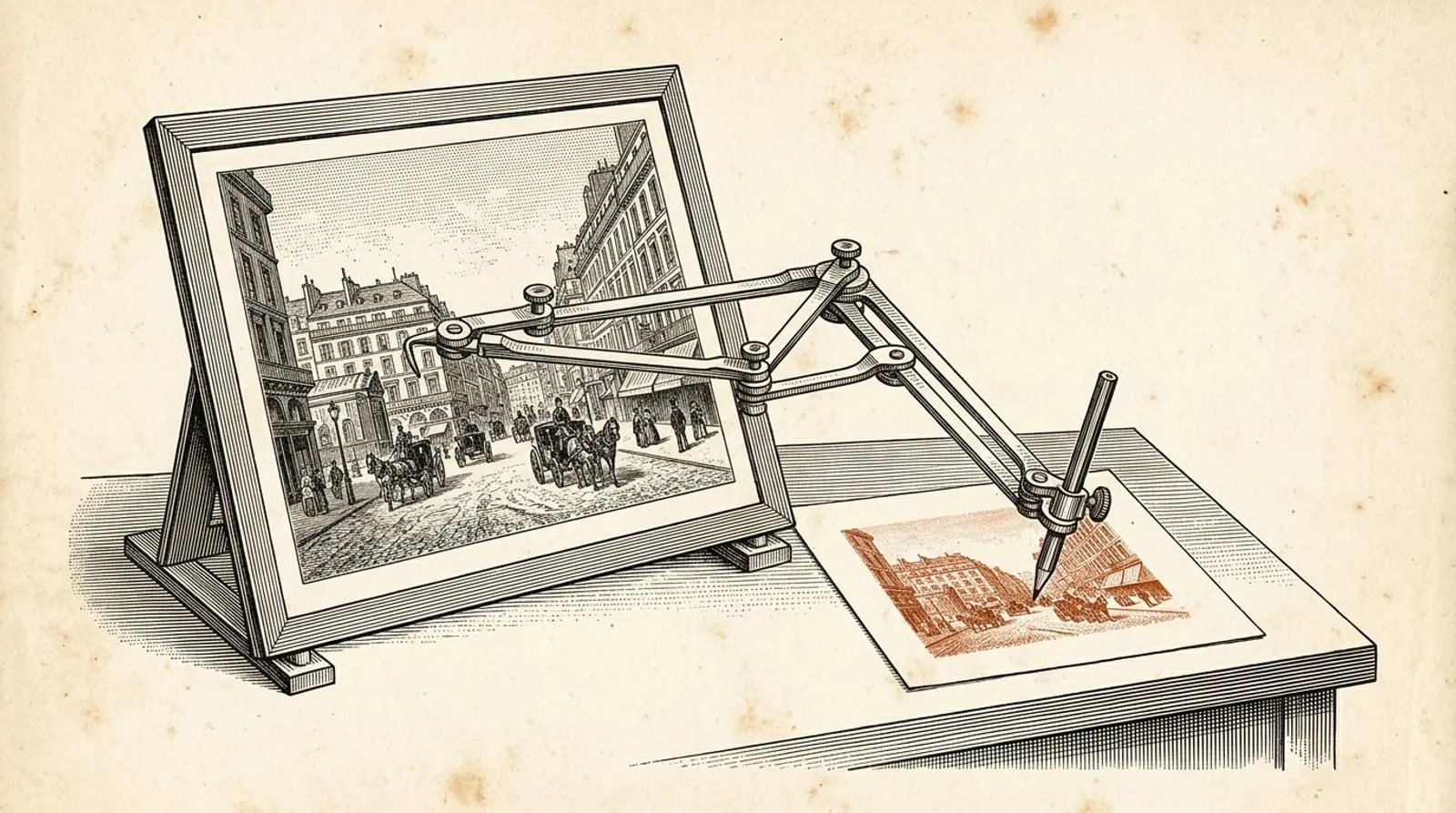
Until last week, every photo that went on the Chiswick Calendar took a detour first. Someone on the editorial team would download it from an email or a phone, open a free website called Bulk Resize Photos, drag the picture in, ask for something around 200 to 300 KB, download the result, and only then upload it to WordPress. For an events listing with eight photos, that’s eight detours. For a daily news site, it’s a part of every working day.
It’s been that way for as long as I’ve looked after the development side of the site, which I do with Dawn Wilson of DW Multimedia. I’d tried to automate it before and never found anything that did what that website did. This time I worked out exactly how it does it, then built a WordPress plugin that does the same thing the moment a photo is uploaded, so nobody has to think about it again.
Not long after it went live, Bridget Osborne, who owns and edits the Chiswick Calendar, sent me this:
“I can’t thank you enough for changing the photograph thing. It has revolutionised my life. I forgot about it at first and then I suddenly realised. I didn’t believe it would work, but it did. I used to spend hours [messing] about with photographs.”
This is how it works, with the code, and why a small custom plugin was the answer when nothing off the shelf was.
Two kinds of “size”
When people talk about an image’s size, they mean one of two different things, and the whole problem lives in the gap between them.
The first is resolution: how many pixels wide and tall the picture is. A modern phone photo is about 4,000 by 3,000 pixels. That decides how big the picture can be shown before it looks soft.
The second is file size, in kilobytes or megabytes. That’s how much storage it takes up, and how much a reader’s phone has to download. A phone photo is usually 3 to 6 MB.
The two are related but they aren’t the same. Two photos with exactly the same resolution can have very different file sizes, because a JPEG of a busy street full of detail takes far more data to describe than a JPEG of a clear blue sky. That’s the catch the rest of this article is about. Shrinking a photo’s resolution by a fixed amount doesn’t give you a predictable file size, because how much data each pixel needs depends on what’s in the picture.
Why a news site has to care
WordPress doesn’t store one copy of each photo. When you upload an image, it makes a set of smaller copies, one for each size the theme might want: a thumbnail, a square for the news grid, a medium version, a large one, and so on. That’s a good thing in principle. A reader on a phone gets a small copy that still looks sharp on their screen, rather than downloading the full-size picture meant for a big desktop monitor.
On the Chiswick Calendar, between WordPress, the theme and a forms plugin, there were up to 18 copies of every upload. One photo uploaded in 2025, just over 1 MB, had 17 copies sitting beside it that came to 6.2 MB between them. So every megabyte someone uploaded cost about six more on the server, and on a site that publishes every day and serves around 4 million image requests a month, that adds up fast. Before a big clean-up last week, the server’s disk was 89% full.
For most small business sites none of this matters much. They upload a few dozen photos in the site’s lifetime, WordPress makes its copies, and a few extra gigabytes of storage never troubles anyone. A news site is a different animal, which is why the team had been shrinking photos by hand: a 250 KB upload makes a much smaller set of copies than a 5 MB one.
How I’d do it today, on Cloudflare
The modern answer is not to make the copies at all until somebody asks for one. That’s one of the reasons I moved my own work onto Cloudflare, and it’s how Culted works now.
Culted’s editors upload whatever photo they have, at whatever size. The site only ever stores that one original. When a reader’s browser asks for the picture, it asks for a particular width, and Cloudflare’s Image Transformations makes that version on the spot, and keeps it in its cache so it doesn’t have to make it again. An image on Culted is addressed something like this:
/cdn-cgi/image/width=768,quality=82,format=auto/https://cms.culted.com/api/media/file/photo.jpg
Change the 768 and you get a different size. format=auto hands each browser the most efficient format it supports, so most readers get WebP or AVIF without anyone converting anything. And if nobody ever asks for a particular size of a particular photo, it never gets made, never takes up storage, and never costs anything. Cloudflare counts each size of each image once a month, the first 5,000 a month are free, and it’s $0.50 per thousand after that.
For a site with a large photo library that’s the right way round: one original per photo, and the copies only exist while they’re useful.
Why that wasn’t an option here
The Chiswick Calendar is a long-running WordPress site with years of articles, events, advertising and a Club Card scheme built into it. Moving it is a big project, and until that makes sense for the business, it stays on WordPress and I work with what WordPress does. So the job was to make WordPress’s copies cheap by making sure the photo it copies from is small to begin with.
The obvious route was a plugin, and I’d looked before. Every image plugin I tried works on dimensions and quality: you set a maximum width, say 1,920 pixels, and a JPEG quality, say 80, and it applies that to everything. Imsanity is a good example and it does that job well. But because of the two-kinds-of-size problem, a fixed width and quality lands a photo of a sky at 150 KB and a photo of a crowded market at 600 KB. The team didn’t want a resolution. They wanted a file size.
The first time round, I went looking for an image library that could resize to a file size and found that, broadly, none can. PHP’s image tools take a width, a height and a quality and give you whatever file comes out. ImageMagick can aim at a file size, but it does it by lowering the quality until the file fits, which is exactly the thing that makes photos go blocky. That’s where I’d left it.
How Bulk Resize Photos does it
What I should have done the first time, and did this time, was stop looking for a library and look at the tool the team already trusted. Bulk Resize Photos does all its work in your browser (its homepage says “Private, no uploading”), which means the code that does it is sitting in the page’s JavaScript for anyone to read. So I read it.
Its “file size” mode turns out to be clever in a quietly backwards way. Most tools shrink a file by lowering the quality. Bulk Resize Photos keeps the quality fixed, at 75 by default, and shrinks the picture instead:
- Save the photo as a JPEG at quality 75.
- If it’s under the target, you’re done.
- If not, work out how many bytes each pixel took, and from that, how many pixels the target allows.
- Resize to that many pixels, minus a 3% safety margin, and save again.
- Repeat until it fits.
It never crops, and it never touches the quality. Because the quality never drops, the result never goes blocky. It just gets a bit smaller on screen, and on a website, where almost nobody looks at a photo bigger than their screen, that’s the trade you want. It’s also why tools that resize to a file size are so rare. Most people approach it from the quality end, and that end gives worse pictures.
The maths in step 3 is the neat bit. At a fixed quality, a given photo takes roughly the same number of bytes per pixel whatever size you save it at. So if the first save came out at four times the target, the target allows about a quarter of the pixels. And because shrinking both sides of a picture by a factor shrinks its area by that factor squared, the amount to shrink each side by is the square root. Here’s that loop as it runs in the plugin, simplified:
$quality = 75;
$data    = encode( $image, $width, $height, $quality );

while ( strlen( $data ) > $target ) {
	// Pixels the target allows at this many bytes per pixel, less 3%.
	// Shrinking both sides by $ratio shrinks the area by $ratio squared,
	// so the side ratio is the square root of the byte ratio.
	$ratio  = sqrt( $target / ( strlen( $data ) * 1.03 ) );
	$width  = (int) floor( $width * $ratio );
	$height = (int) floor( $height * $ratio );
	$data   = encode( $image, $width, $height, $quality );
}
Say the first save comes out at 1,000 KB and the target is 250 KB. The ratio is the square root of 250 over 1,030, which is about 0.49, so a 4,000 by 3,000 photo goes to about 1,970 by 1,480 on the next try. Bytes per pixel aren’t perfectly constant, because a smaller photo packs its detail tighter, so it sometimes takes a second or third pass. In testing it was never more than a handful.
Turning it into a plugin
Bulk Resize Photos runs in a browser. The plugin runs on the server, as part of WordPress’s own upload, and the most important decision was where in the upload to step in.
WordPress gives plugins a hook called wp_handle_upload, which fires after WordPress has done its security checks (that you’re logged in, allowed to upload, and that the file is really the type it claims to be) and saved the file, but before it has created the media library entry or made any of its copies. That’s the moment. If the plugin swaps in a small file there, WordPress never knows the big one existed: every copy is cut from the small file, and the 5 MB original is never kept.
add_filter( 'wp_handle_upload', 'cc_shrink_handle_upload' );
add_filter( 'wp_handle_sideload', 'cc_shrink_handle_upload' );
The second line catches images that arrive another way, such as a photo pulled in from a URL rather than uploaded from a computer.
The plugin only steps in when it needs to. Anything 300 KB or under is left alone, so a photo someone has already shrunk by hand isn’t squashed a second time. Anything bigger comes down to under 250 KB. Every number is a setting at the top of the file, and each can be overridden from WordPress’s own wp-config.php without editing the plugin:
// Leave anything this size or smaller alone...
defined( 'CC_SHRINK_TRIGGER' ) || define( 'CC_SHRINK_TRIGGER', 300 * 1024 );
// ...and bring anything bigger under this.
defined( 'CC_SHRINK_TARGET' ) || define( 'CC_SHRINK_TARGET', 250 * 1024 );
// Bulk Resize Photos' default.
defined( 'CC_SHRINK_QUALITY' ) || define( 'CC_SHRINK_QUALITY', 75 );
// WordPress's big-image limit.
defined( 'CC_SHRINK_MAX_EDGE' ) || define( 'CC_SHRINK_MAX_EDGE', 2560 );
// The floor, and how far quality may drop to stay above it (more below).
defined( 'CC_SHRINK_MIN_EDGE' ) || define( 'CC_SHRINK_MIN_EDGE', 1600 );
defined( 'CC_SHRINK_MIN_QUALITY' ) || define( 'CC_SHRINK_MIN_QUALITY', 65 );
That 2560 matters more than it looks. It’s WordPress’s own limit for big images: upload anything wider or taller and WordPress makes a scaled-down copy to use, and quietly keeps the full-size original as well. On this site those kept originals had added up to 2.3 GB. Nothing on a news page is ever shown at more than 2,560 pixels, so the plugin scales anything bigger down to that first, before WordPress checks. WordPress then sees a photo within its limit and has no original to keep.
It also makes the plugin faster. A 19,000-pixel-wide stock photo (one really was uploaded, at 75 MB) is scaled to 2,560 pixels once, and the size loop works from that copy, so it isn’t resampling 241 million pixels on every try.
The one thing I changed
I copied Bulk Resize Photos faithfully first, and tested it on copies of the last 100 real uploads over 300 KB. It worked, and every result came in under target. But on the busiest photos, crowds and street scenes with detail everywhere, pure “keep the quality, shrink the pixels” took them down to about 1,000 pixels wide, and on a big screen they looked soft.
So the plugin has one addition. Before it lets a photo go narrower than 1,600 pixels, it tries dropping the quality a little, to 70 and then 65, and only shrinks further if that still isn’t enough. 1,600 pixels covers the article column on a high-density laptop screen with room to spare. On a busy photo, the step down to quality 65 is very hard to spot at normal viewing size. A photo 1,000 pixels wide on a big screen isn’t.
$long = max( $width, $height );
if ( $long * $ratio < CC_SHRINK_MIN_EDGE && $quality > CC_SHRINK_MIN_QUALITY ) {
	if ( $long > CC_SHRINK_MIN_EDGE ) {
		// Come down to the floor first...
		$ratio = CC_SHRINK_MIN_EDGE / $long;
	} else {
		// ...then trade a little quality instead of pixels.
		$quality = max( CC_SHRINK_MIN_QUALITY, $quality - 5 );
		continue;
	}
}
The target came up from 200 KB to 250 KB at the same time. I compared the options on the same 100 uploads before choosing:
| Setting | 100 uploads came to | Typical photo, long side | Photos under 1,200px |
|---|---|---|---|
| 200 KB, pure Bulk Resize Photos | 12.3 MB | 1,238px | 13 of 31 |
| 250 KB | 13.9 MB | 1,384px | 9 |
| 250 KB, with the 1,600px floor | 13.8 MB | 1,600px | 6 |
| 300 KB, with the floor | 15.2 MB | 1,600px | 4 |
The chosen setting is visibly sharper than the pure version for about 12% more storage. The six left under 1,200 pixels were smaller than that before they started. The 100 uploads were 115.6 MB as they arrived.
The fail-safes
A plugin that sits inside every upload on a busy news site has one job above all the others, which is to never be the reason someone can’t publish. So the rules it follows are mostly about what it won’t do.
It never stops an upload. The whole thing runs inside a try, and if anything goes wrong, the error is written to the server’s log and WordPress gets the upload exactly as it arrived:
function cc_shrink_handle_upload( $upload ) {
	if ( ! empty( $upload['error'] ) || empty( $upload['file'] ) ) {
		return $upload;
	}
	try {
		// Convert, shrink and clean the file...
		return $upload;
	} catch ( Throwable $e ) {
		error_log( 'jw-upload-optimiser: ' . $upload['file'] . ': ' . $e->getMessage() );
		return $upload; // Worst case, it's as if the plugin wasn't there.
	}
}
It never makes a file bigger by shrinking it. If the shrunk version somehow comes out larger than the upload, it keeps the upload. The only exceptions are the ones where a bigger file still saves space overall, such as scaling down something over 2,560 pixels, where the alternative is WordPress keeping the original as well.
It never crops. Every resize uses one scale factor for both sides, so the picture’s shape is always what the editor uploaded.
It writes safely. The new file is written under a temporary name and only renamed into place once it’s complete, so a full disk or a timeout can’t leave a half-written photo behind. When the format changes, say an iPhone photo becoming a JPEG, the original upload is held in memory until the new file is safely down, and put back if anything fails.
It has a safety net. A few images can still slip past it, such as a transparent PNG over 2,560 pixels or a photo too large to open safely. If WordPress ends up keeping an original for one of those, the plugin deletes it once WordPress has finished making its copies.
It leaves a note. Every photo it touches gets a short record of what was done, stored with the image, so if an editor ever says a picture came out blurry, I can see exactly what happened to it:
$ wp post meta get <attachment id> _cc_upload_shrink
HEIC converted to JPEG; 582 KB 2634x1482 -> 246 KB 1911x1074, q75, 3 tries; location removed
And it’s a normal plugin, not something buried in the theme, so it can be switched off from the Plugins screen and uploads go straight back to how they were.
What it does while it’s there
Once a plugin has the photo open, there are a few other jobs that cost almost nothing to do at the same time.
- iPhone photos. iPhones save photos as HEIC, which most browsers can’t show and WordPress can’t make copies of. The plugin converts them to JPEG with ffmpeg on the server, so they upload like any other photo.
- Photos saved as PNG. PNG is meant for logos and graphics, and a photo saved as one is often 2 or 3 MB. Photos in PNG become JPEGs. Anything with a transparent background, like a logo, stays a PNG, and GIFs are never touched, so animated adverts are safe.
- Location data. Phones write the exact place a photo was taken into the file. Of the 3,793 JPEGs uploaded to the site in the previous six months, 55 carried a GPS position. The plugin removes that and the rest of the camera data from every image, without re-saving the picture itself, but keeps the colour profile and reads the caption and credit first so WordPress can still fill them in.
- The copies themselves. The theme was telling WordPress to save every copy at quality 100, which makes files two or three times bigger than quality 82 with no difference anyone can see. The plugin sets it back to 82, which is WordPress’s own default, and stops WordPress making five sizes the site never uses.
What changed
Tested through WordPress’s real upload code, an 11 MB, 5,000-pixel photo used to leave behind its original and a pile of copies. With the plugin it leaves 12 files, 761 KB in total. Uploads got faster too: that same photo took 4.9 seconds to upload before and 2.7 seconds after, because WordPress is cutting its copies from a 250 KB file instead of a 5,000-pixel one.
Alongside it, I cleared out the copies nobody used and re-saved the old ones at the normal quality, which took the server from 89% full to about 45%. The plugin is what stops it filling up again.
But the change that matters is the one in the quote. The editorial team doesn’t shrink photos any more. They upload whatever they’ve been sent, straight from an email or a phone, and get on with the story.
When a custom plugin is the answer
Most of the time, the right plugin already exists, and I’ll tell you to use it. WordPress’s plugin directory is enormous for a reason. But now and then a business has a way of working that’s just slightly different from what every off-the-shelf plugin assumes. Here, every plugin assumed you’d want a resolution, and the team wanted a file size. That small mismatch was costing someone hours every week.
That’s the gap a custom plugin fills. This one is about 600 lines in a single file. It does one job, it’s written for one site, it fails safe, and it can be switched off with one click. Most of the work wasn’t the code. It was finding out how the tool the team trusted actually works, then testing the result on a hundred of their real photos before it went anywhere near the live site.
If there’s a step in your week that you keep doing by hand because nothing quite does it the way you need, that’s worth a conversation. I build custom WordPress plugins and integrations, from £500 for a focused one like this, and the first chat is free. Get in touch.
// thanks for reading
If something here was useful, or wrong, I'd like to hear about it. Email Email us.